EnergyMate-3 is a fully automatic smart changeover for 3 electricity meters. Set a unit (kWh) limit for each meter and, as soon as one meter reaches its limit, the device moves the load to the next meter by itself. Set it from the device’s LCD and buttons or from the TeqHome app.
EnergyMate-3 and EnergyMate-4 are fully automatic (Fully Auto) smart changeovers. EnergyMate-3 connects 3 meters and EnergyMate-4 connects 4 meters. The device has an LCD and 3 push buttons, and the same device can also be run from the mobile app.
Set a separate unit (kWh) limit for every meter
When the limit is reached the device moves to the next meter by itself
Your load stays protected against voltage and amp (current) faults
Meters switch off and on by themselves with a timer and weekly schedule
Settings are possible from the LCD and buttons even without the app
3meters
LCDand 3 buttons
WiFimobile control
The EnergyMate platform has been running successfully in production for 2 years. Features such as amp protection, schedules and previous reading come with the new firmware.
HOW IT WORKS
How does it work?
The whole process in five steps, all automatic:
1CHECK
When power comes, the device checks the voltage
2STABILIZING
If the voltage stays correct for 10 seconds in a row, the first meter turns on
3RUNNING
While running, voltage, current, power and units are measured continuously
4NEXT METER
When a meter reaches its limit, its output turns off and the next meter turns on
5DONE
When every meter has reached its limit the device stops and the LCD shows ALL DONE
Nobody has to press a switch; the device decides by itself within its limits.
FEATURES
Key features
Everything at a glance; below, every feature is shown with screens.
Voltage protection
Amp protection
Unit control
Timer and schedule
Scheduled reset
Reset reports
Power monitoring
Bill estimator
Energy history
Previous reading
Remote app control
LCD and 3 buttons
MODELS
EnergyMate-3 and 4: the difference
TeqHome app
EnergyMate3
EnergyMate4
Number of meters
3
4
LCD and 3 push buttons
✓
✓
Wi-Fi + Bluetooth setup
✓
✓
Unit limit and voltage protection
✓
✓
Amp (over-current) protection
✓
✓
Timer and weekly schedule (meter OFF / ON)
✓
✓
Scheduled reset and reset report
✓
✓
Live readings, bill estimator, history
✓
✓
Previous reading (matches the real meter)
✓
✓
Manual / auto selector switch
✓
✓
Firmware update (OTA)
✓
✓
Both use the same app. The only difference is the number of meters, so choose the model that matches how many meters you have.
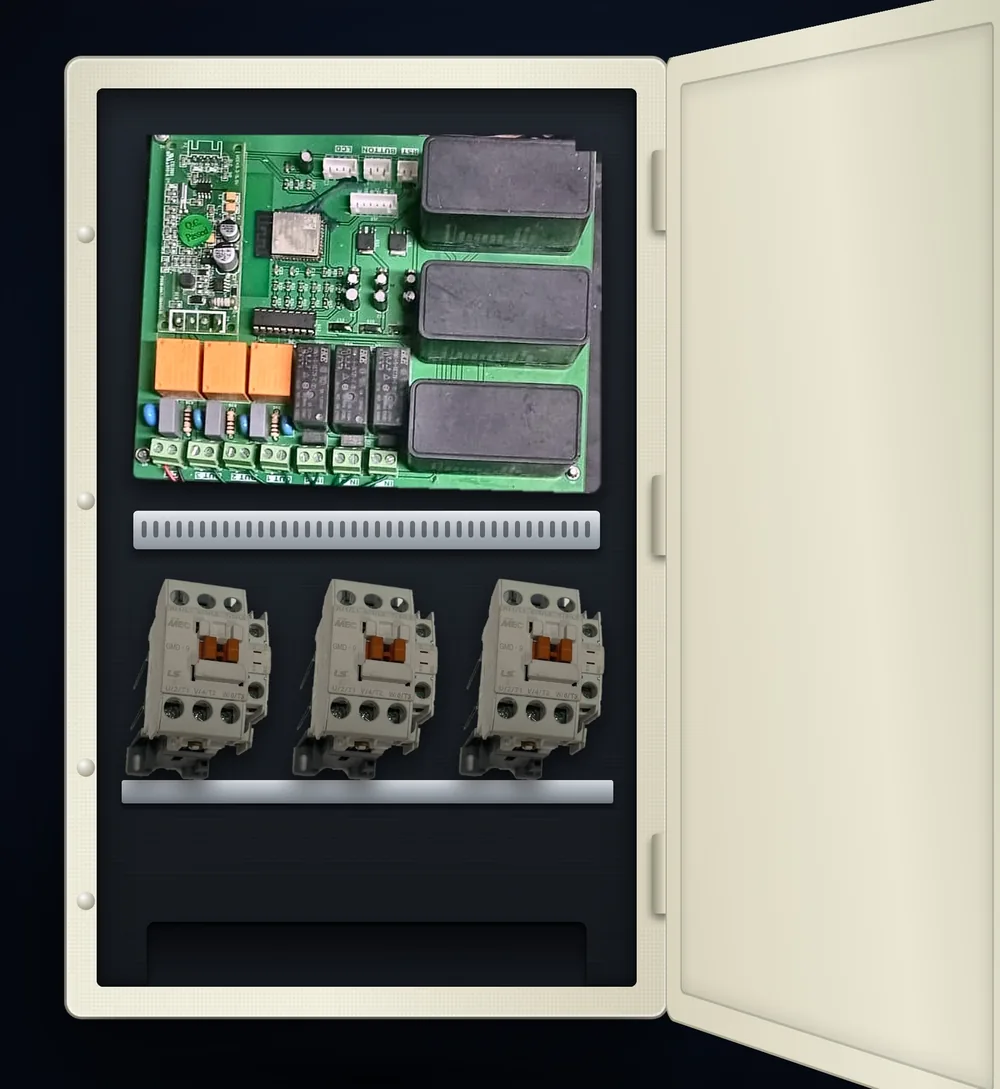
The current model has LS GMD-9 contactors, which suit normal household loads (motors, pumps, fans and so on). For a heavier load the company can change the contactors to match the load. You can also buy just the box without contactors.
The picture shows the 3-meter model; EnergyMate-4 has one extra meter. Have the installation done by a qualified electrician.
LCD & BUTTONS
LCD and three buttons
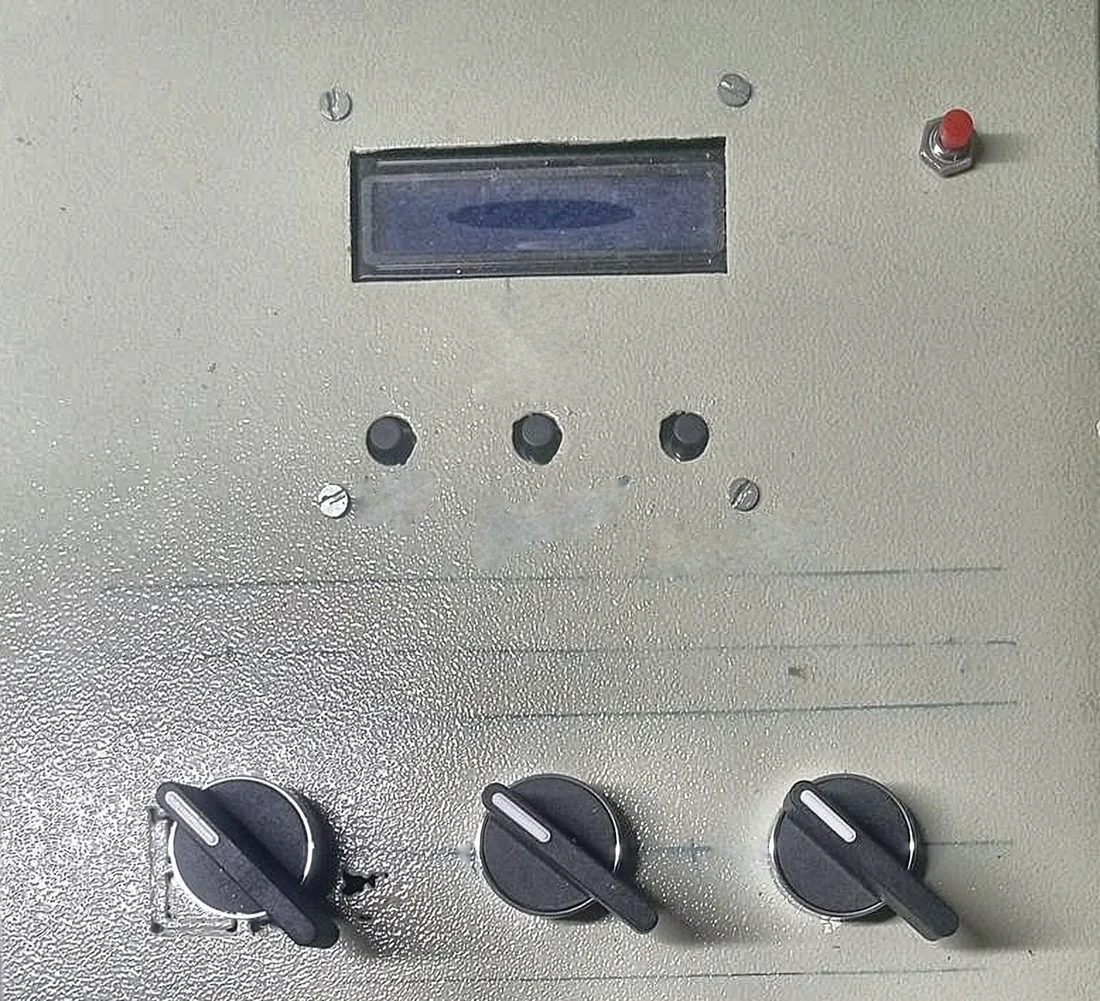
The front has a 16×2 LCD and three push buttons (it is not a touch screen). Even without a phone, limit, voltage and amp can be set right here.
UP
open the menu, move forward or increase a value
ENTER
select, go to the next step, save at the end. Restart on an amp trip
DOWN
decrease a value. On the first screen (Select Meter): leave the menu
The limit changes in steps of 10 kWh, voltage and amp in steps of 1.
Front panel: LCD, three buttons and manual / auto switches
LCD SCREENS
What you see on the LCD
M1RUN228.4V
2.75A607W
While running: which meter, voltage, current and watts
Used:6.851kwh
Lmt:100.000kwh
Every 5 seconds: Used and the set Limit (kWh)
M2STABILIZING
Pleasewait...
STABILIZING: voltage check before a meter is turned on (10 seconds)
ALLDONE
SystemIdle
ALL DONE: every meter has reached its limit
AMPTRIPM2
66.4A>63.0A
AMP TRIP: meter turned off on high current; shows which meter and how much current
ENT:RestartM2
Ampprot.->OFF
Press ENTER: Restart, after you have checked the wiring and the load
PAUSEDM1M3
WaitingforON
PAUSED: meters paused by the schedule, waiting for ON
BLEREADY
WaitingApp...
BLE READY: a new device is ready to connect to the app
SET FROM DEVICE
Settings from the buttons
1
SelectMeter
M1UP:NxtENT:OK
Press UP or ENTER, choose the meter with UP, then ENTER
2
M1Limit
100kWh
Change the kWh limit with UP / DOWN, then ENTER
3
SetVoltMin
190V
Minimum voltage with UP / DOWN, then ENTER
4
SetVoltMax
240V
Maximum voltage with UP / DOWN, then ENTER
5
SetAmpLimit
25A
Amp limit with UP / DOWN; 0 means off. Everything is saved on the last ENTER
6
FactoryReset
HoldENT3s
Factory Reset: after the last meter press UP, then hold ENTER for 3 seconds
Everything is saved on the last ENTER. If no button is pressed for 30 seconds the menu closes without saving. Setting a new limit zeroes that meter’s Used.
Factory Reset clears the Wi-Fi and account details and the device goes back to BLE READY. Limits and used units are kept. If you release ENTER before 3 seconds nothing happens.
MOBILE APP
The TeqHome app, screen by screen
The same device that you set from the buttons is also controlled from the TeqHome app, from anywhere.
LIVE MONITORING
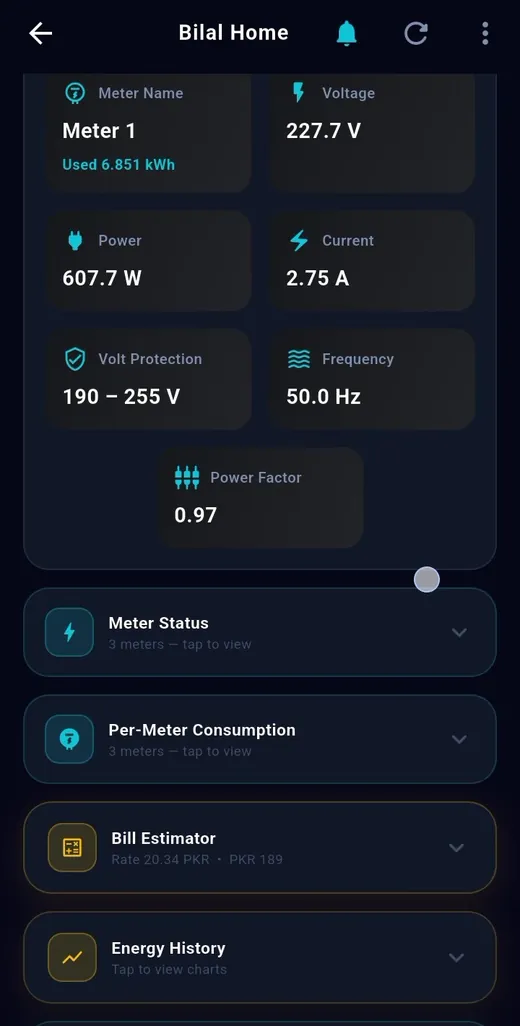
Live monitoring
Every reading of the running meter goes straight to your phone, updated every few seconds.
Voltage, current, power, frequency and power factor
Meter Name: which meter is running right now and how many units (Used kWh) it has used
The current voltage and amp protection settings at a glance
METER SETTINGS
Meter settings and previous reading
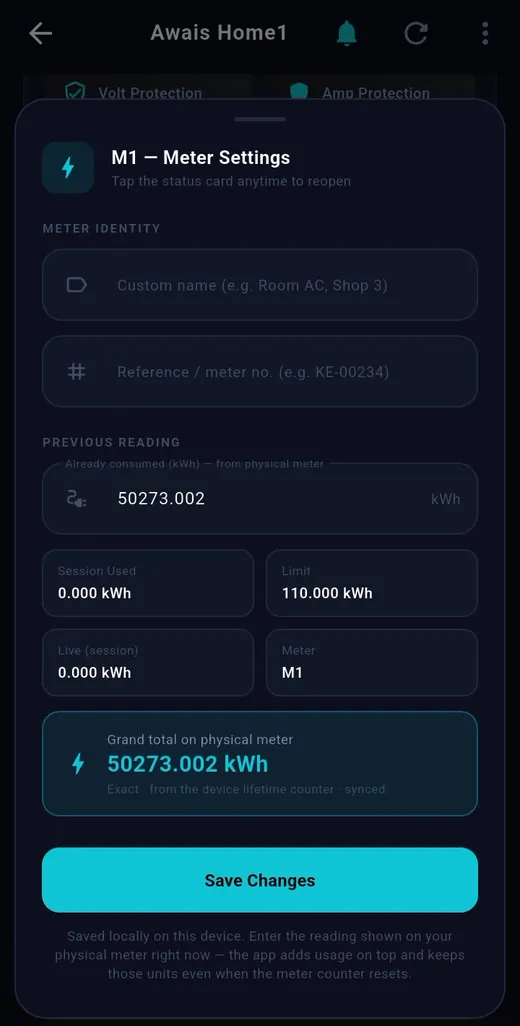
Give every meter a name and enter the current reading of your real meter. The app keeps adding the units used on top of it.
A name of your choice, such as Room AC or Shop 3
Grand total on physical meter: the total shown on the real meter
Even if the device’s counter is reset, the total units stay correct
UNIT CONTROL
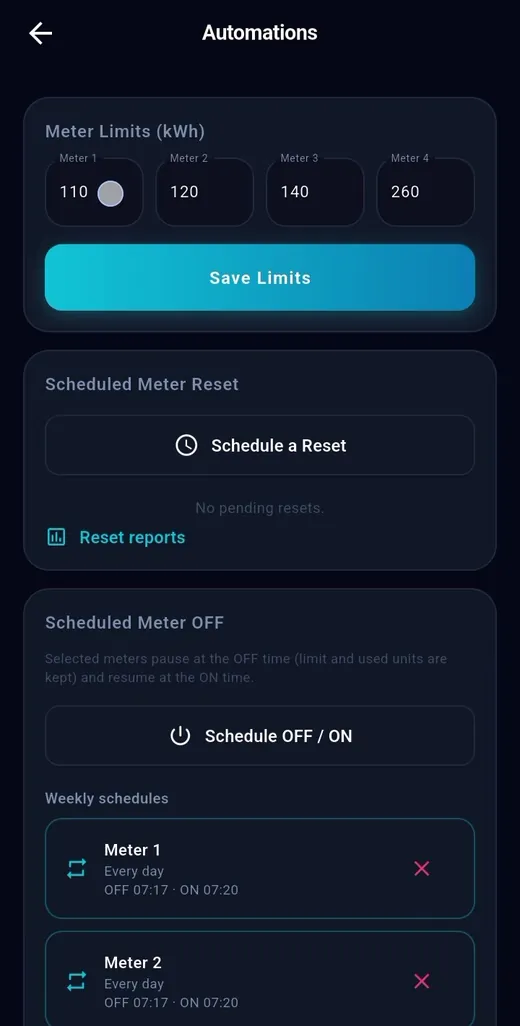
Unit limit and voltage protection
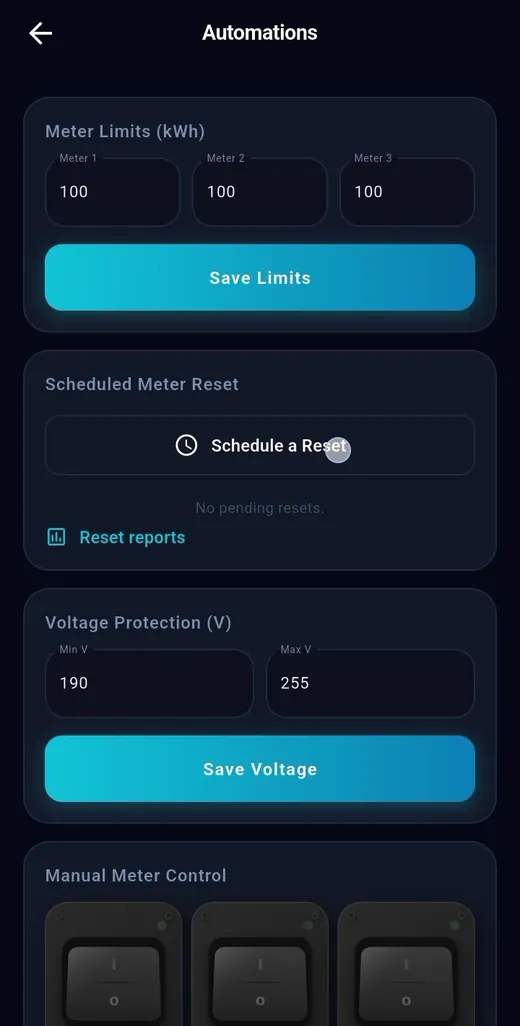
Set a separate kWh limit and a voltage range for each meter from the app. As soon as a limit is reached the next meter turns on by itself.
Open Automations, type the limit under Meter Limits and press Save Limits
Under Voltage Protection type Min V and Max V and press Save Voltage
If the voltage goes out of range the output turns off, and turns on by itself 10 seconds after it is correct again
The limit is kept in the device memory, even through a power cut
AMP PROTECTION
Amp (over-current) protection
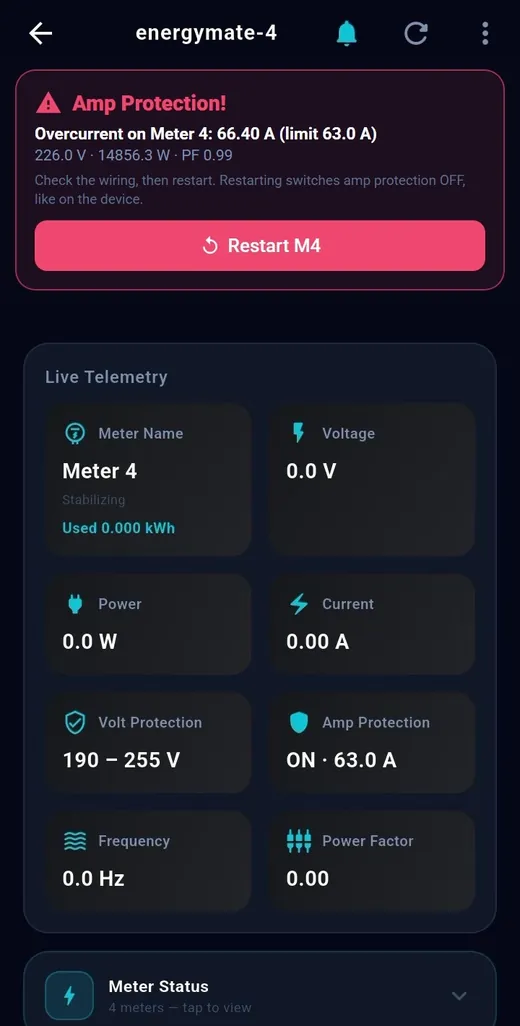
On high current the running meter turns off at once and an alert comes on your phone.
Set the maximum amps (A) from the app or from the device’s LCD menu
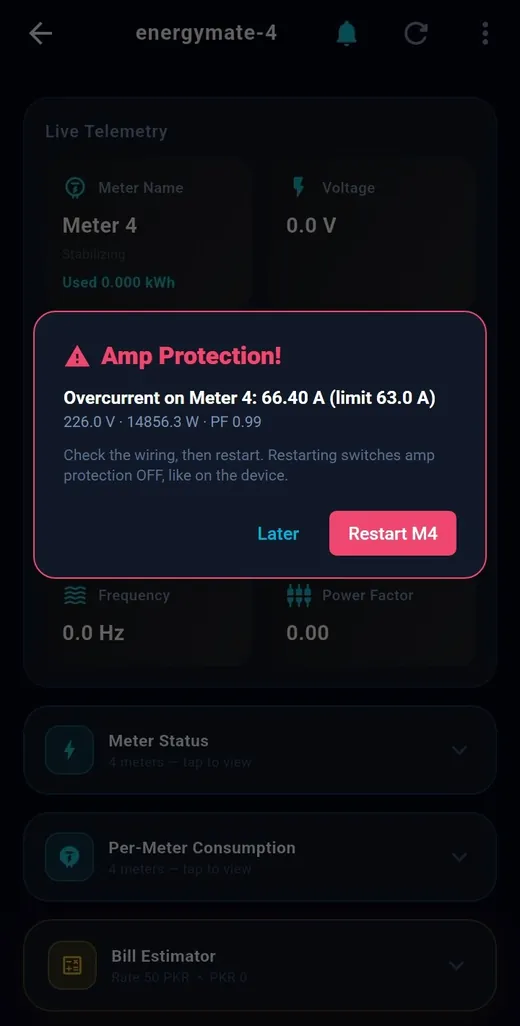
On a trip a red card and a pop-up appear, and the owner, shared users and dealer are notified
The trip is remembered even through a power cut, so a faulty load does not start again by itself
After checking the wiring and the load, press Restart in the app or ENTER on the device. Restart switches amp protection off, so set the limit again. (Sample screens: this is how the app looks on a trip.)
TIMER & SCHEDULE
Timer and weekly schedule
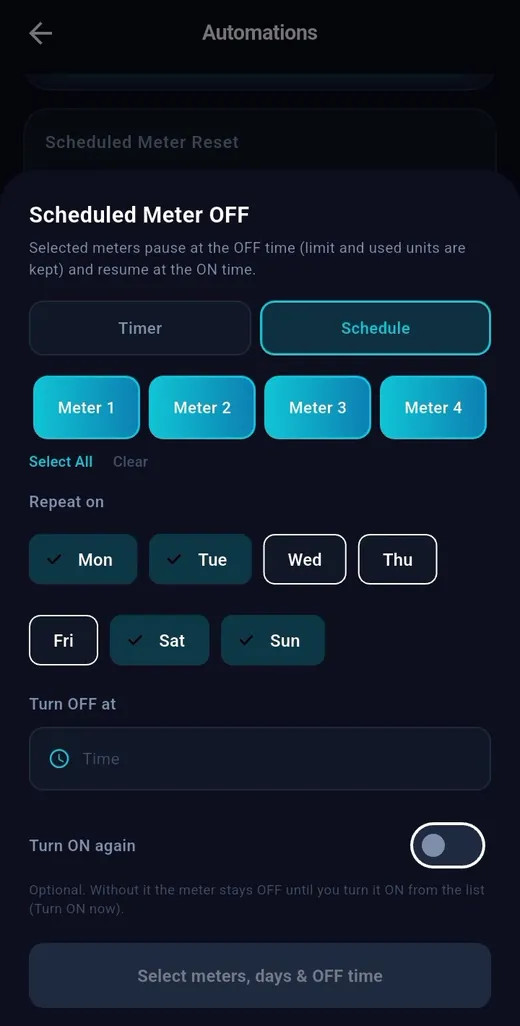
Turn a meter off and on again at a set time, once or every week.
Timer: OFF at a date and time and, if you like, Turn ON again
Schedule: pick the days, set the time, it repeats every week by itself
OFF means a pause: the meter’s limit and usage are kept and it carries on from the same place at ON
The device must be connected to the internet for timers and schedules
SCHEDULED RESET
Scheduled reset
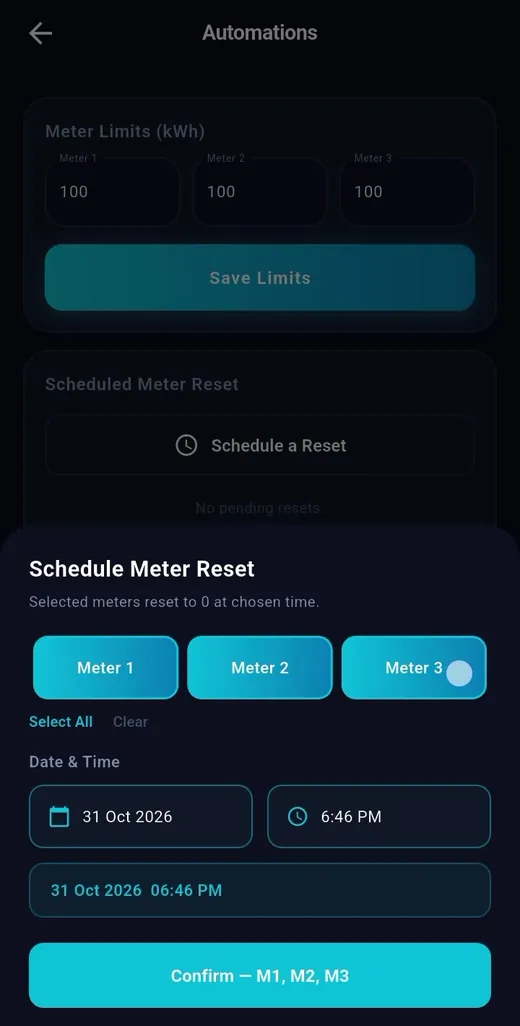
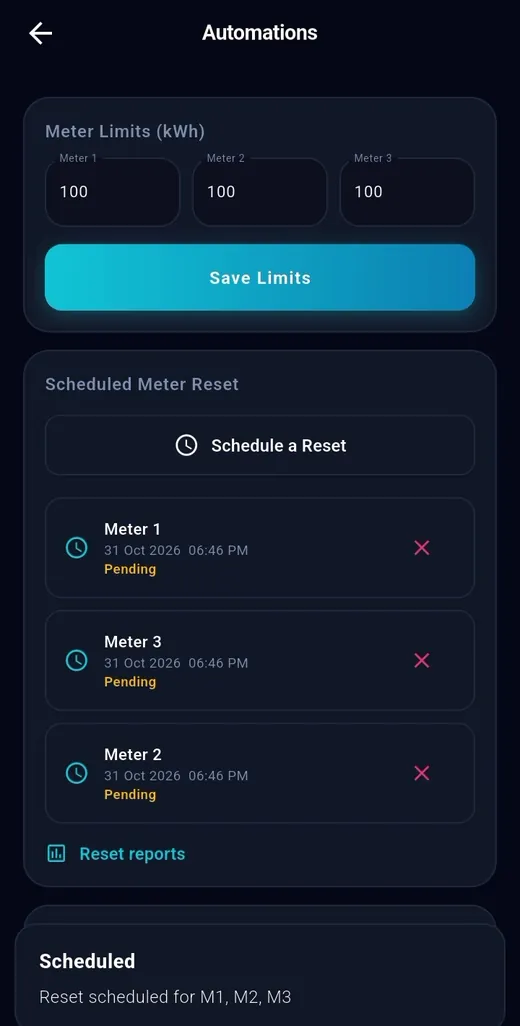
Reset the meters by themselves at month end or any other time, for example on the new billing date.
Press Schedule a Reset, choose the meters, set the date and time and press Confirm
Pending resets show in the list and can be cancelled with ✕
If the device is off at reset time, the reset happens when it comes back
After a reset the used units go to zero and the limit also goes to zero, so set a new limit.
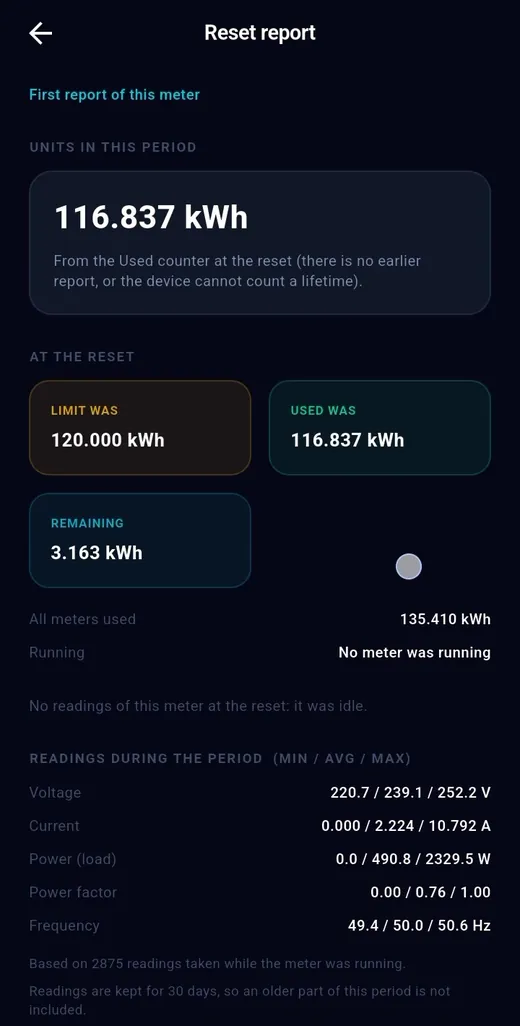
RESET REPORTS
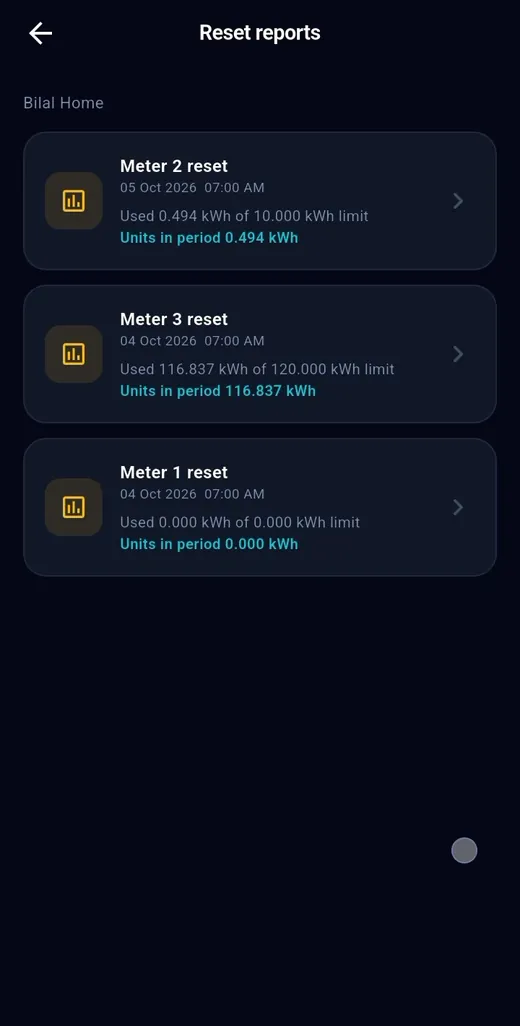
Reset report
A full report is saved for every reset: how many units were used in that period and what the conditions were.
Limit was, Used was and Remaining at a glance
Min / Avg / Max of voltage, current, power and frequency in that period
The scheduled and the actual time of the reset
A separate report for each meter in the list
Report readings are kept for 30 days.
BILL ESTIMATOR
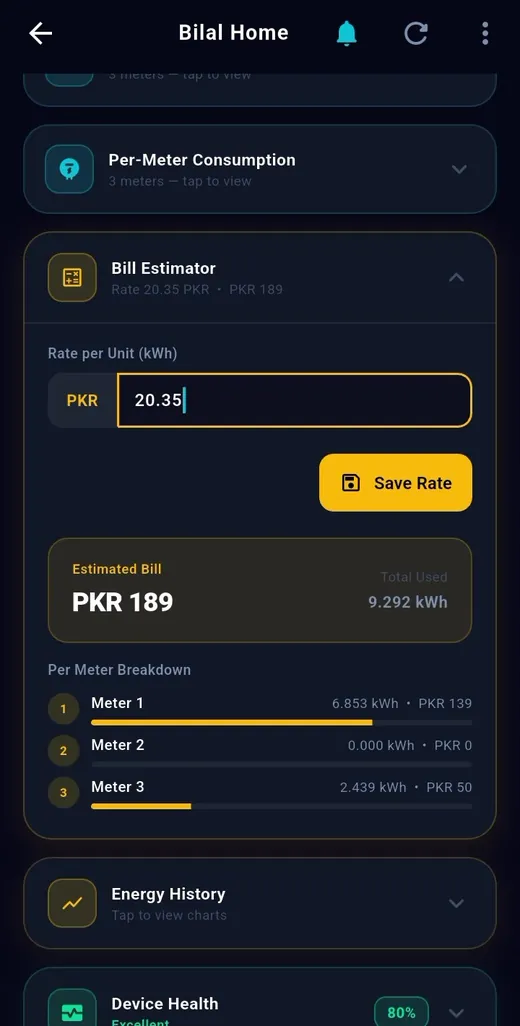
Bill estimator
Enter your per-unit rate and the app estimates the bill from your usage.
Type your rate (PKR) in Rate per Unit and press Save Rate
Estimated Bill and total kWh used show at once
Per Meter Breakdown shows the units and amount for each meter
This is an estimate of the bill; the real bill follows the electricity company’s rates and taxes.
ENERGY HISTORY
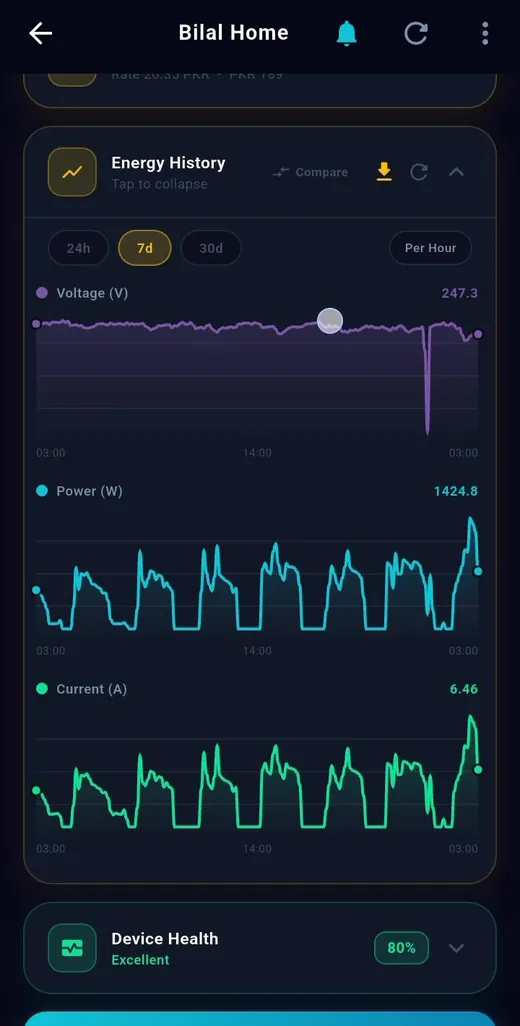
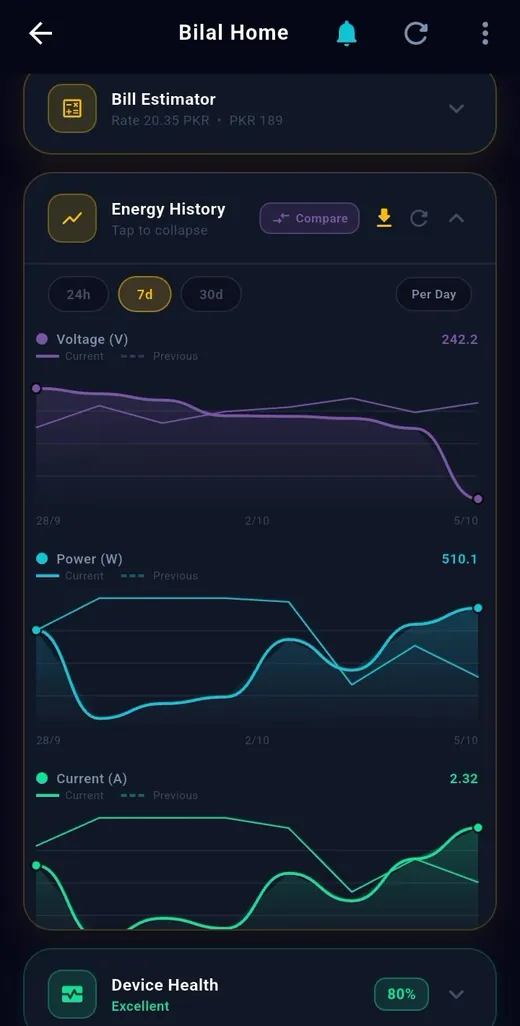
Energy history
Graphs of voltage, power and current so you can see when and how the electricity was.
Choose 24 hours, 7 days or 30 days
Compare with the previous period using Compare
A button to download the graph is also there
History is kept for 30 days.
ALERTS
Instant alerts
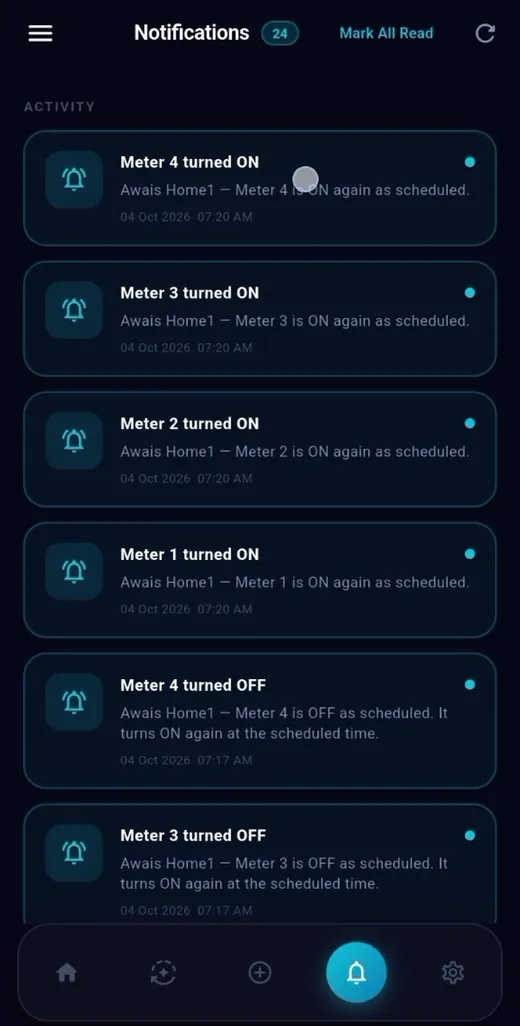
Whatever happens to a meter or the device, a notification reaches your phone at once.
A notice when a meter turns ON or OFF by schedule
A notice on unit limit reached, voltage fault and amp trip
A notice when the device goes online or offline, and when a reset completes
Tap any notification to see the details, or dismiss it
MANUAL CONTROL
Manual and auto
Normally the device runs by itself, but you can also take control by hand when needed.
App: in Automations use Manual Meter Control to turn any meter on
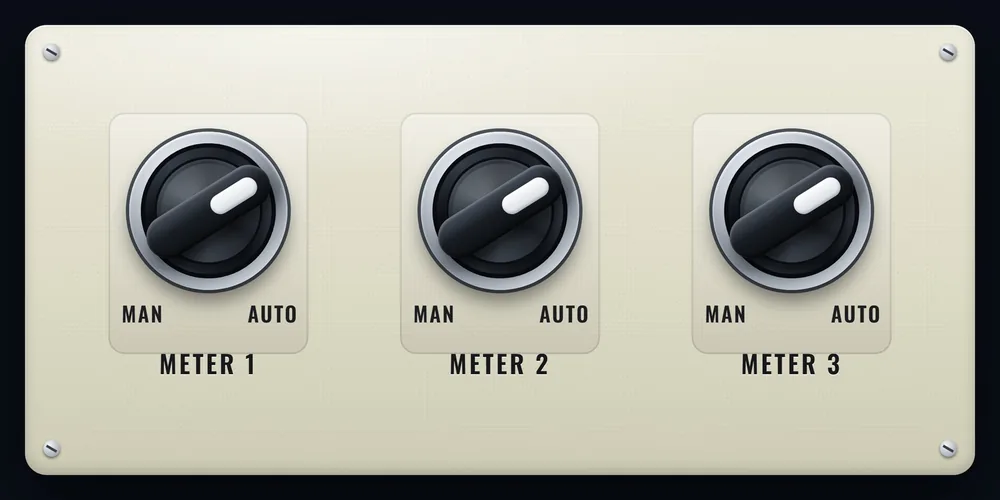
Front panel: a manual / auto selector switch for each meter
On auto the device changes meters by itself according to the limit and voltage. On manual any meter runs by your hand, for example while fixing a power fault or during testing. When you start a meter manually from the app, the meter that was paused later resumes by itself.
The manual / auto selector switches on the front panel
ADD DEVICE
Add the device (1/2)
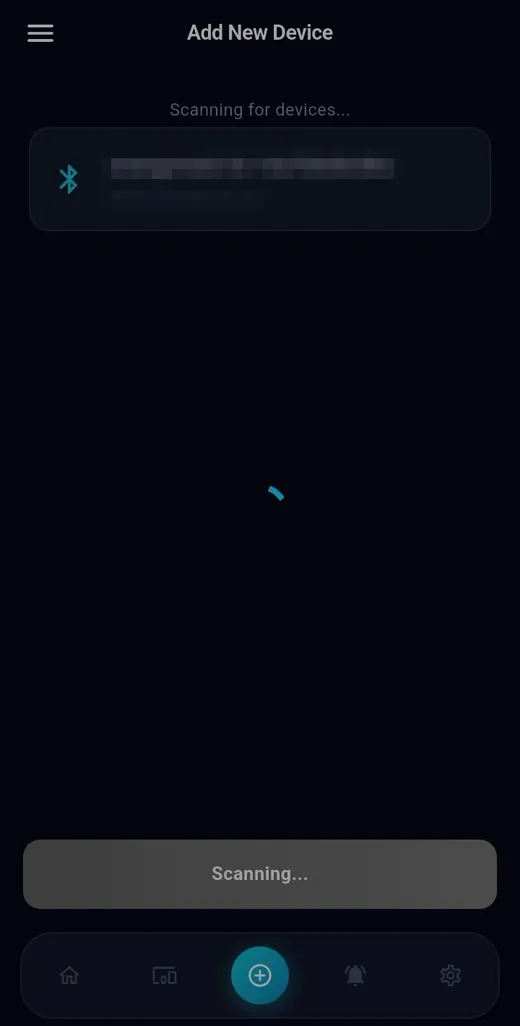
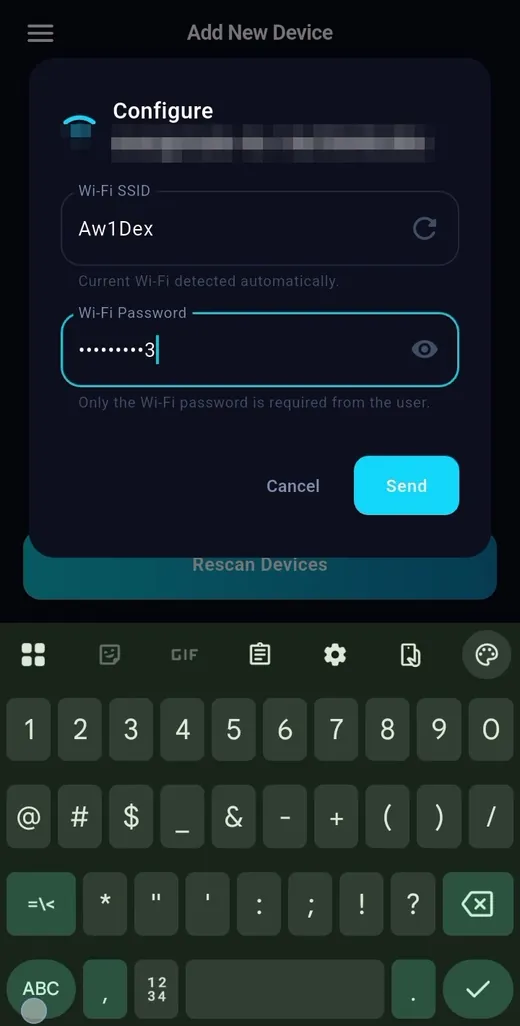
A new device connects to the app in a few minutes: Bluetooth setup, then Wi-Fi.
Step 1: the device’s LCD shows “BLE READY”. In the app press + (Add Device) at the bottom, turn Bluetooth on and allow the permission
Step 2: the device name energymate-… appears in the list, tap it
Step 3: type your Wi-Fi password. The app picks up the network name by itself. Then press Send
ADD DEVICE
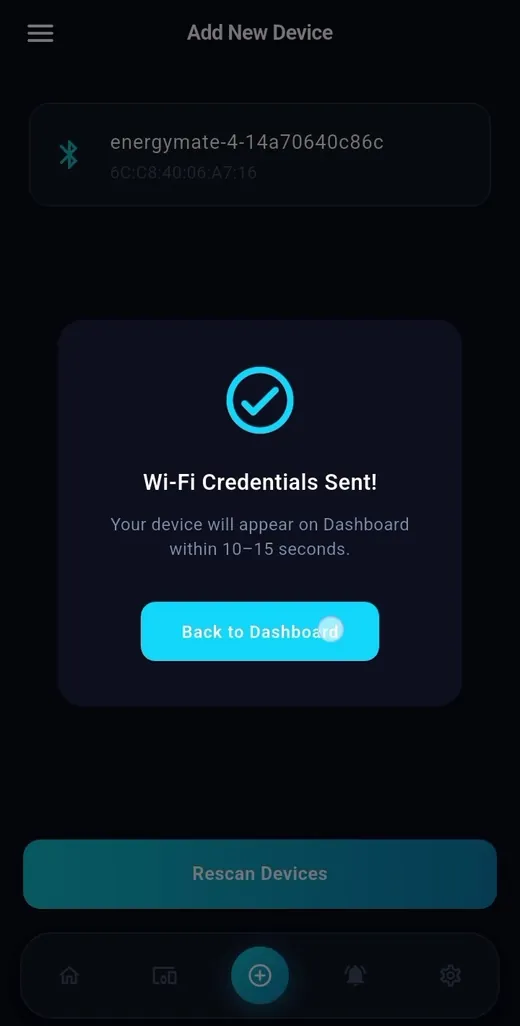
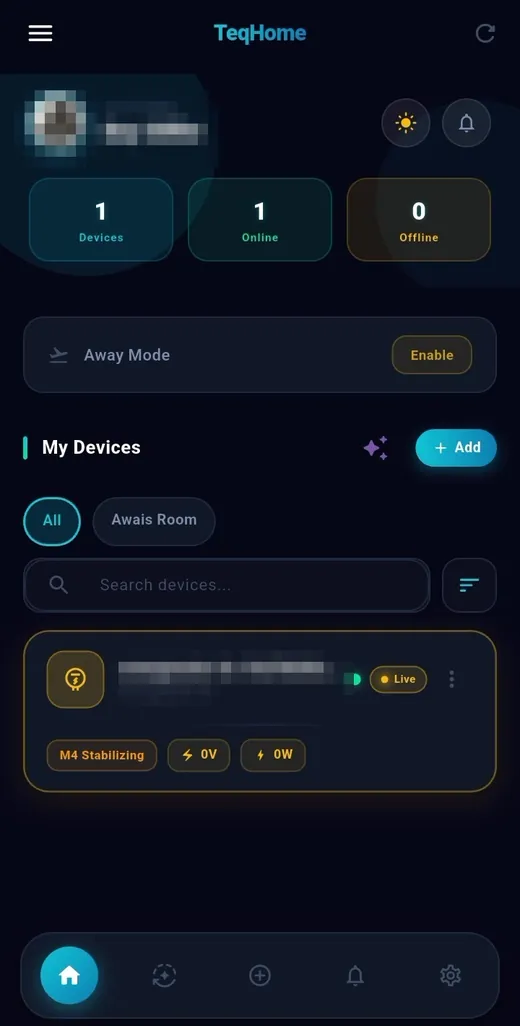
Add the device (2/2)
After sending the Wi-Fi details, just wait a little.
Step 4: when “Wi-Fi Credentials Sent!” appears, wait 10 to 15 seconds
Step 5: press Back to Dashboard; your device is already in the list with a Live mark
Then open the device and set the meters’ limits and voltage
If the device does not appear in the list, press its reset button for 3 seconds (or use Factory Reset in the LCD menu) so that it goes back to Bluetooth setup mode. The Wi-Fi must be 2.4 GHz.
SHARING
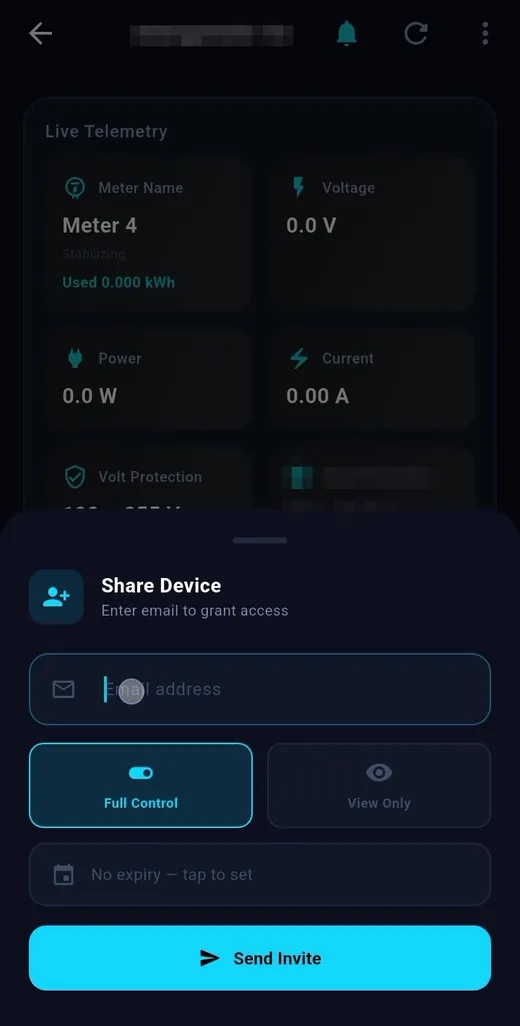
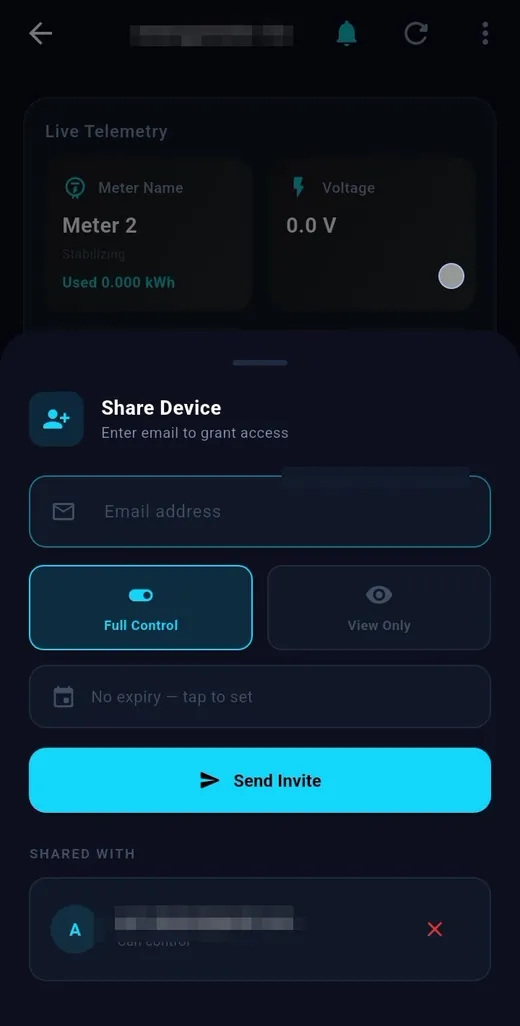
Share the device
Give family or a shop partner access to the device. One device, several phones.
From the top menu (⋮) choose Share Device
Type the e-mail and choose Full Control or View Only
If you like, also set an access expiry (Expiry)
After Send Invite they appear under Shared With, and ✕ ends the access
APP SETTINGS
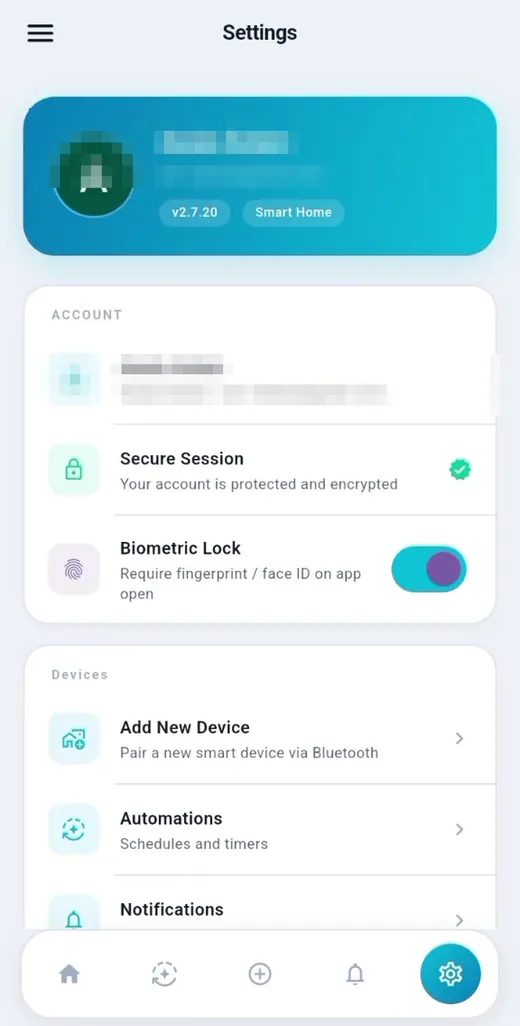
App settings
The app fits your language and taste: Urdu or English, dark or light.
Language: switch between Urdu and English instantly
Light Mode: dark and light theme
Biometric Lock: lock the app with fingerprint or face
Check for Updates for the new version of the app
SPECIFICATIONS
Technical information
Meters
3
Measured readings
Voltage, Current, Power, Energy (kWh), Frequency, Power Factor
Reading update
Every 3 seconds
Voltage protection
Min and Max as you choose
Amp protection
Limit from 0 to 200 A (0 = off)
Unit limit per meter
Up to 999.999 kWh
Timer / schedule
Meter OFF / ON from the app, once or weekly
Before a meter turns on
Voltage must stay stable for 10 seconds
Connectivity
Wi-Fi (2.4 GHz) and Bluetooth
Display and control
16×2 LCD with 3 push buttons (not a touch screen)
Settings memory
Kept even when the power goes
Update
Firmware OTA (wireless)
App
TeqHome (Android)
The maximum load depends on the installed contactor. Contact us for details.
SAFETY
Safe in every situation
What the device does in difficult situations:
Power goes off
Settings, limits and the amp trip stay in the device memory. When power returns, work restarts as soon as the voltage is stable
Voltage out of range
Output off; it turns on by itself when the voltage is correct, otherwise on the next meter
Current over the limit
The meter turns off at once, AMP TRIP on the LCD, a red alert on the phone. The trip is remembered even after a reboot
Internet goes off
The device keeps running on its limits and the LCD / buttons work. Internet is needed for schedules and notifications
Changing the Wi-Fi
Press the reset button for 3 seconds, or use Factory Reset in the LCD menu (hold ENTER 3 seconds). The Wi-Fi details are cleared; limits and units are kept
FAQ
Common questions
How many meters can be connected?
EnergyMate-3 takes 3 meters and EnergyMate-4 takes 4.
Can it run without the app?
Yes. Limit, voltage and amp can be set with the LCD and the UP / ENTER / DOWN buttons.
Is it fully automatic?
Yes. When the limit is reached the device moves to the next meter by itself. If you want to run it by hand, manual control is there.
What should I do after an amp trip?
Check the wiring and the load, then press Restart in the app or ENTER on the device. Then set the amp limit again.
Will it run a heavy load?
The capacity depends on the installed contactor. For a heavy load the company changes the contactor.
How do I factory-reset the device?
On the LCD: after the last meter press UP, then hold ENTER for 3 seconds on Factory Reset. Or hold the reset button for 3 seconds. Limits and units are kept; you give the Wi-Fi again.
How do older devices get the new features?
The new firmware is updated wirelessly (OTA); the device does not need to be opened.
ENERGYMATE-3
Control of your electricity, now in your hands
Call or message us for price, availability and installation.


 with support of Falcon Electric Concern